
Claude Code and Codex on your iPhone
Updated · TIT
Claude Code and Codex work in a terminal on your Mac — which is a problem when you're not at it. A long task stops to ask for permission and waits until you're back. Pim puts those sessions on your iPhone: start one in any folder, follow every step, answer its questions, read the diff and ship it, while the agent and your code stay on your Mac.

How it works
Pim for Mac, a free menu bar app, runs Claude Code or Codex on your Mac for you — the same command-line tools you use at your desk, under your own account. Pim on your iPhone reaches it through Pim's server, so it works from anywhere with a connection, not only on your home network.
Every session runs on your Mac, in the folder you picked: a Claude Code session is the same Claude Code you'd start at your desk, running there between your messages. While it works, a Live Activity on the Lock Screen and in the Dynamic Island shows the current step; when it finishes or needs you while you're away from the Mac, your iPhone gets a notification that opens the session.
Hand it to Pim
Rather not drive it yourself? Tell Pim what you want done — "upgrade the dependencies in api-server and tell me when the tests pass" — and it starts Claude Code or Codex in the right folder on your Mac, keeps an eye on the session and tells you how it went in the same conversation, with a link to it. Ask it what your agents did overnight, or have it send a session its next step.
A session Pim started is in the Agents tab like any other, marked Pim, so you can open it and take over whenever you like. Approvals stay yours: Pim never answers them, and when Claude Code asks for your OK or asks you a question, it comes to you.
Start a session
Tap + in the Agents tab, write what you want done, and send. Above the text box you pick the folder — a recent project, any folder in your home folder, or a path you type — and, if you've paired more than one Mac, which Mac. The model menu lists Claude Code's models and, where Codex is installed, Codex's, each with how hard it should think, from low to max.
Attach photos or files with +: a screenshot of a bug, a design, a log. They're copied to the Mac and handed to the agent with your message.
While the agent works you can already write the next message: it waits under the conversation, marked Queued, and goes in when the turn ends. Text you haven't sent stays in the box when you leave the session.
The Agents tab keeps your sessions in order: Needs You at the top — the ones waiting for your OK, an answer or a look at their reply — then Working, Scheduled, Today and Earlier. When the Mac can't be reached, the last list and each session's latest page are still there to read, marked with when they were updated; you can send again once it's back.
Approve from anywhere
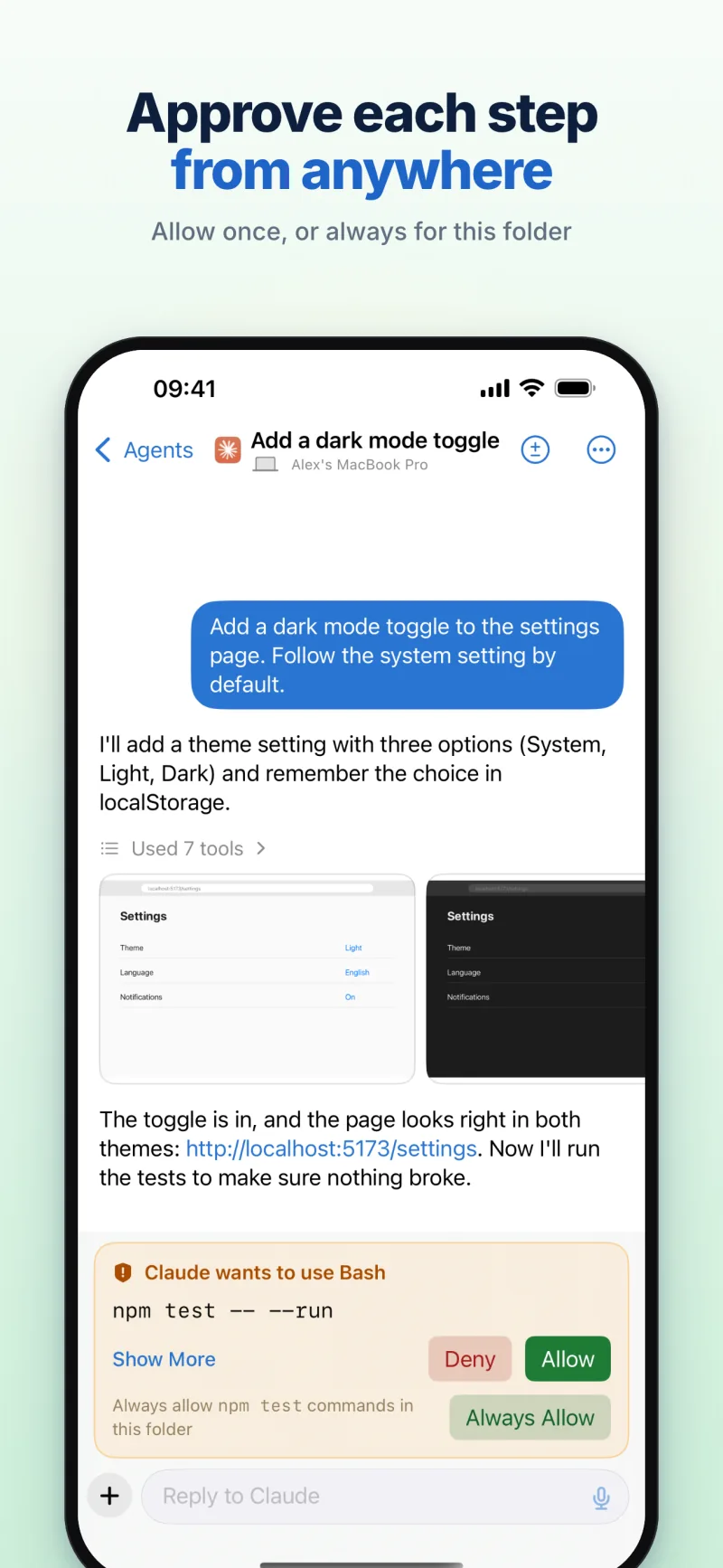
Claude Code asks before some actions — running a command, say — and in a terminal it waits for you to type an answer. With Pim the question comes to your iPhone: an orange card in the session, a notification with Allow and Deny, and the same buttons on the Live Activity. Allow from a notification needs the iPhone unlocked first, so nobody can approve anything from your Lock Screen. Answer in one place and the others clear.
You don't have to open the session: in the Agents list, swipe a request or press and hold it to Allow or Deny. Plans and questions open the session, where there's room to read them.
When Claude Code offers to remember your answer — what "Yes, and don't ask again" does in a terminal — the card, the list and the notification have Always Allow too, and the card says what it will save: "Always allow npm test commands in this folder", say. Claude Code keeps the rule as it would at your desk — one for the folder in .claude/settings.local.json in the project folder, for every session there. Allowed in This Folder, in the session's menu, lists the folder's rules; swipe one to remove it.
When Claude Code asks you to choose — between two approaches, say — its options come to your iPhone as buttons. Tap one and Claude carries on with your answer.
Ask for a plan first, and Claude Code shows it when it's ready — "Claude's plan is ready" — before it touches a file. Read it, then Approve, or tap Keep Planning and say what should change.
Codex sessions don't ask along the way. Codex runs in its sandbox, where it can change files in the session's folder and use the network, and you follow every step as it goes.
Review the changes and ship them
The ± button opens the session's uncommitted changes: each file with the lines added and removed, and its diff in colour. At the bottom, Commit, Commit & Push and Open Pull Request ask the agent to do it, and it writes the commit message itself.
Something to fix first? Tap a line and write what's wrong with it. Your comments gather at the top under Your Comments, and one button sends them all to Claude as a single message — while Claude is still working, too: it goes in when the turn ends.
Under every turn Pim shows the model, the tokens and the time; the session's menu has the totals.
The terminal, live
A Claude Code session you start from Pim runs in Pim's own terminal session on the Mac, and Live Terminal, in the session's menu, shows you that terminal as it is, in colour, as it changes — Claude Code's own screen, menus and all. Under it are the keys its prompts take — Esc, Tab, Shift-Tab, the arrows, Return and 1 to 3 — and a box to type in. ⇥ Send sends the next message Claude Code suggests, grey in its box, in one tap. Drag to scroll back through what it showed earlier.
The same menu has Compact Conversation, with how many tokens the conversation takes up, and the session's mode — Ask First, Accept Edits, Plan First or Auto — the modes Shift-Tab steps through at the Mac. When it isn't Auto, the mode shows above the text box.
See the app you're building
When the agent works on a web app, its dev server runs on your Mac — at localhost:5173, say. Web Preview opens it in Pim on your iPhone: choose Preview Web App… in the session's menu, or tap a localhost link in the conversation, and pick the port; those in the session's folder come first. The page works as it would in a browser on the Mac, with back, forward and reload, and Open Another Port… for the API next to it.
Each connection the page opens goes from your iPhone through Pim's server to Pim for Mac, which connects to that port on the Mac. It's encrypted end to end between the two, like the remote desktop, and nothing of it is stored.
Back at your desk
Open in Terminal on Mac shows the session in Ghostty, iTerm or Terminal on the Mac. A Claude Code session is already running there, in Pim's own terminal session, so the window simply shows it, conversation and all: type at your desk, and still reply, stop it or answer its questions from your iPhone. Closing the window doesn't end it; /exit does, and one left idle for an hour is put to rest and picks up again with your next message. Or copy the resume command and run it yourself.
With Open sessions from iPhone in Ghostty turned on in Pim for Mac (Settings → Terminal Sessions, shown when Ghostty is installed), every session you start from your iPhone opens a Ghostty window on the Mac as well, so it's there when you sit down.
And when a session finishes or needs you while you're away, you can reply right from the notification, after unlocking the iPhone.
Sessions you started in a terminal
Turn on Show terminal sessions on iPhone in Pim for Mac (Settings → Terminal Sessions; it's off until you do) and the Claude Code sessions running in a terminal on your Mac show up in the app too, with their conversation and the screenshots their tools took. Those running in Ghostty you can answer from your iPhone: Pim types your reply into that session on the Mac. Start a session with pc instead of claude and you can answer it in any terminal.
Turn on Approvals and questions on iPhone as well, and every Claude Code session on the Mac brings its requests for approval and its questions to your iPhone. Pim adds its hook to Claude Code's settings for that; sessions that were already open pick it up when you start them again.
Sessions on a schedule
A scheduled agent session starts on its own — once, every day, on the weekdays you pick, or at a set interval — in the folder and with the model you chose. Three templates get you going: update the dependencies, run the tests every night, review the code every week. If the Mac is asleep at the time, the session starts when it's back, up to 12 hours later, and asks you, as any session does, when it needs you.
What you need
Pim is an independent app by TIT and is not affiliated with Anthropic or OpenAI. Claude Code is Anthropic's and Codex is OpenAI's; Pim runs the copy on your Mac, and their terms apply.
- An iPhone with iOS 18 or later, or an Android phone with Android 8.0 or later
- A Mac with Apple silicon and macOS 14 or later, with Pim for Mac installed (free, from pim.titdev.nl/mac)
- Claude Code or Codex installed and signed in on that Mac, with your own account
- The Mac switched on and online while you work — Stay Awake in the Remote tab keeps it from sleeping
Frequently asked questions
Do I need an API key?
No. Pim runs the Claude Code or Codex already set up on your Mac, signed in the way you set it up — with a subscription or an API key. Pim never asks for your key and doesn't keep it.
Does Pim show sessions I started in a terminal?
Yes, once you turn it on in Pim for Mac (Settings → Terminal Sessions; it's off until you do). You can answer those running in Ghostty or started with pc from your iPhone; the others you can follow, and reply to at the Mac. The other way round works too: a Pim session continued in Terminal on the Mac can still be answered from your iPhone.
What happens if my Mac goes to sleep?
A sleeping Mac can't be reached, so a session can't start or go on. Stay Awake keeps it awake for 1, 3 or 8 hours or until you stop it — with the lid closed too, once you've allowed Pim in System Settings → General → Login Items. Scheduled sessions wait up to 12 hours for the Mac to come back.
Is my code uploaded anywhere?
Your code stays on your Mac. When you open a session, the app reads the conversation, the steps, the diff and the live terminal from the Mac through Pim's server, which passes them on without storing them. A Web Preview is encrypted end to end between your iPhone and your Mac, so the server can't read it either. Attachments you send are deleted from the server after 7 days.
Where does Always Allow save its rule, and how do I remove it?
Where Claude Code would if you'd answered "Yes, and don't ask again" in the terminal, and the approval card says which. A rule for the folder goes into .claude/settings.local.json in the project folder on your Mac and counts for every Claude Code session there; one for this session ends with the session. Allowed in This Folder, in a session's menu, lists the folder's rules: swipe one to remove it, or edit that file on the Mac.
Does Web Preview send my app through your server?
It passes through, encrypted end to end between your iPhone and your Mac: the server relays what it can't read and stores nothing. Only your own account can open a preview, and only to a Mac you paired; the dev server itself stays on localhost on the Mac.
Does it work on an Android phone?
Yes. Pim for Android, on Google Play for Android 8.0 or later, starts, follows and approves sessions the same way, with the same Pim for Mac, the live terminal and Web Preview. Where the iPhone has the Live Activity, Android shows a progress notification with the current step — and Allow and Deny when Claude Code asks. Allow needs the phone unlocked, as on the iPhone; in the Agents list you press and hold a request to answer it, and replying from a notification needs Android 12 or later.